

Everyone knows you need to back up your website. Very few check that the backups work until the day they need them, and by then it’s too late. This guide explains the 3-2-1 backup rule, how to apply it to a WordPress site without complicating your life and, above all, how to check that your backups are usable.
Quick summary
- The 3-2-1 rule: 3 copies of your data, on 2 different media and 1 off-site (CISA recommends it as a starting point).
- In WordPress, back up the database and the
wp-contentfolder (images, themes, plugins) pluswp-config.php. - A backup you’ve never restored is a hope, not a backup: schedule restore tests.
- Protect your backups: encrypted, with credentials different from your website’s and outside public folders.
In this article
Why backups fail
Almost nobody loses their website for lacking backups. They lose it because they have backups that don’t work. The most common causes are always the same:
- They’re on the same server. If the server fails or gets infected, you lose the website and the backup at the same time.
- They were never tested. The file is there, but it’s incomplete or can’t be restored.
- They share credentials. Whoever gets into your website can also delete the backups.
- They’re too old. The latest one is months old and you’ve lost orders or content.
- Nobody knows how to restore them. In the middle of a crisis is not the time to learn.
The 3-2-1 rule, calmly explained
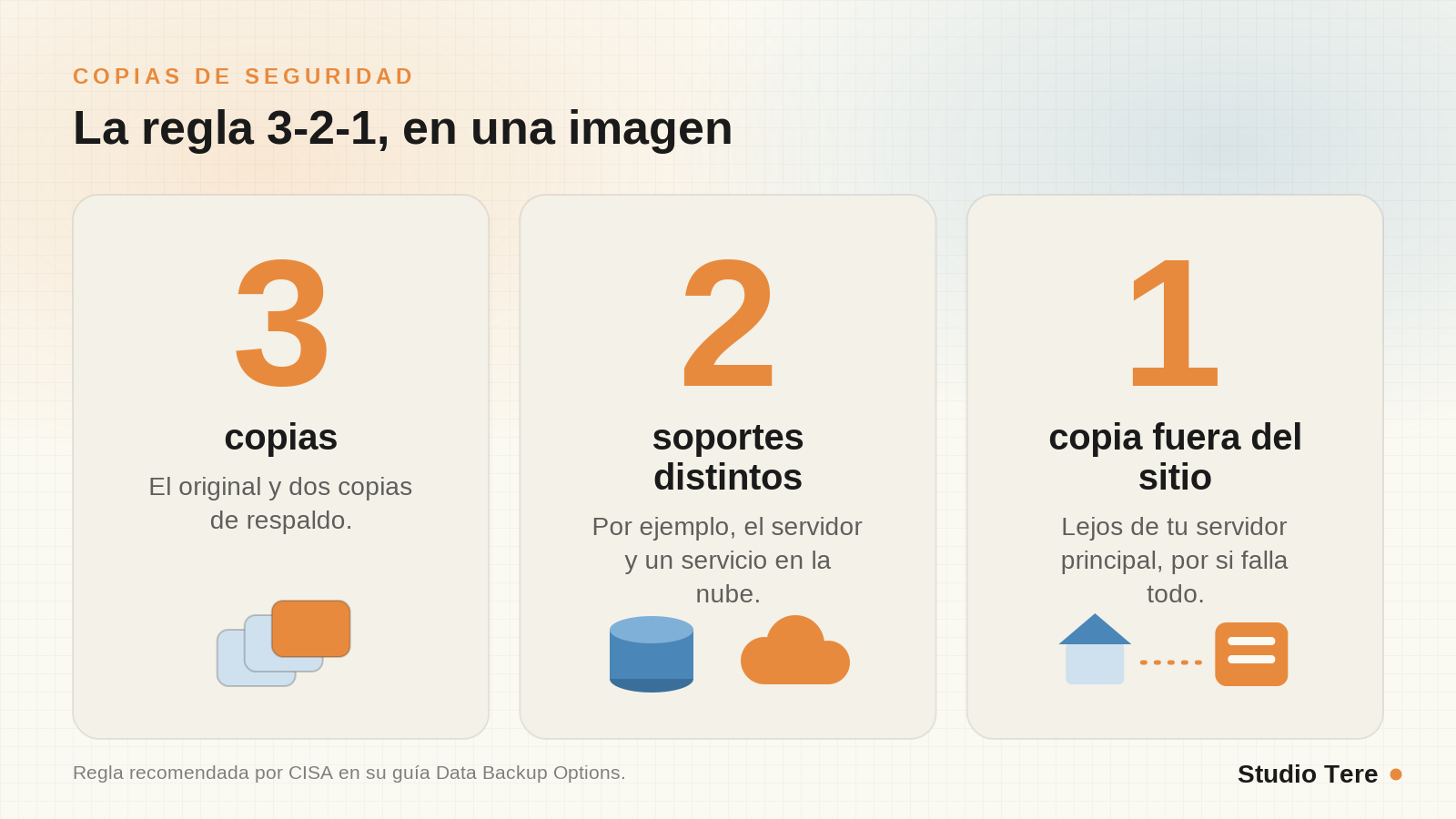
- 3 copies: the original (your live website) and two backup copies.
- 2 different media: for example, the server and a cloud storage service, or an external drive. That way a failure of one type of media doesn’t take all the copies with it.
- 1 off-site copy: in another physical or logical location, to survive a serious incident at your host.
It’s the rule the U.S. cybersecurity agency CISA recommends in its Data Backup Options document, and it remains an excellent starting point. In environments at risk of ransomware, it is extended to 3-2-1-1-0: one immutable or isolated copy (one that nobody can modify or delete) and zero errors when verifying that it can be restored.
What to back up on a WordPress site
| What | Why | Indicative frequency |
|---|---|---|
| Database | Contains posts, pages, settings, users and orders | Daily (or more often if it changes a lot) |
wp-content/uploads | Uploaded images and documents | Weekly, or on every major change |
wp-content/themes and plugins | Your design and features (free ones can be reinstalled) | Weekly or after changes |
wp-config.php | Your installation’s credentials and keys | After every change |
| Server configuration | Rules, domains, emails, scheduled tasks | Documented and reviewed every quarter |
How to do it in practice
There are four common paths. Combining two is usually ideal:
| Option | Advantage | Limit |
|---|---|---|
| Host backups | Effortless and often automatic | Usually with the same provider: they don’t meet the “off-site” requirement |
| Backup plugin with an external destination | Schedulable, with cloud storage | Depends on the plugin being maintained and working |
| Manual backup with WP-CLI or the dashboard | Full and verifiable control | Requires discipline and knowledge |
| Maintenance service | Someone takes care of it and checks | The scope needs to be well defined |
If you have terminal access, WP-CLI lets you export the database with a single command, and you can then compress the content folder:
wp db export copia-$(date +%F).sql
tar -czf contenido-$(date +%F).tar.gz wp-content/uploads wp-content/themes wp-content/plugins wp-config.php
Frequency and retention: how much and for how long
Frequency depends on how much your website changes: a blog that publishes once a month needs fewer backups than a store that receives orders daily. The key question is how much work you can afford to lose:
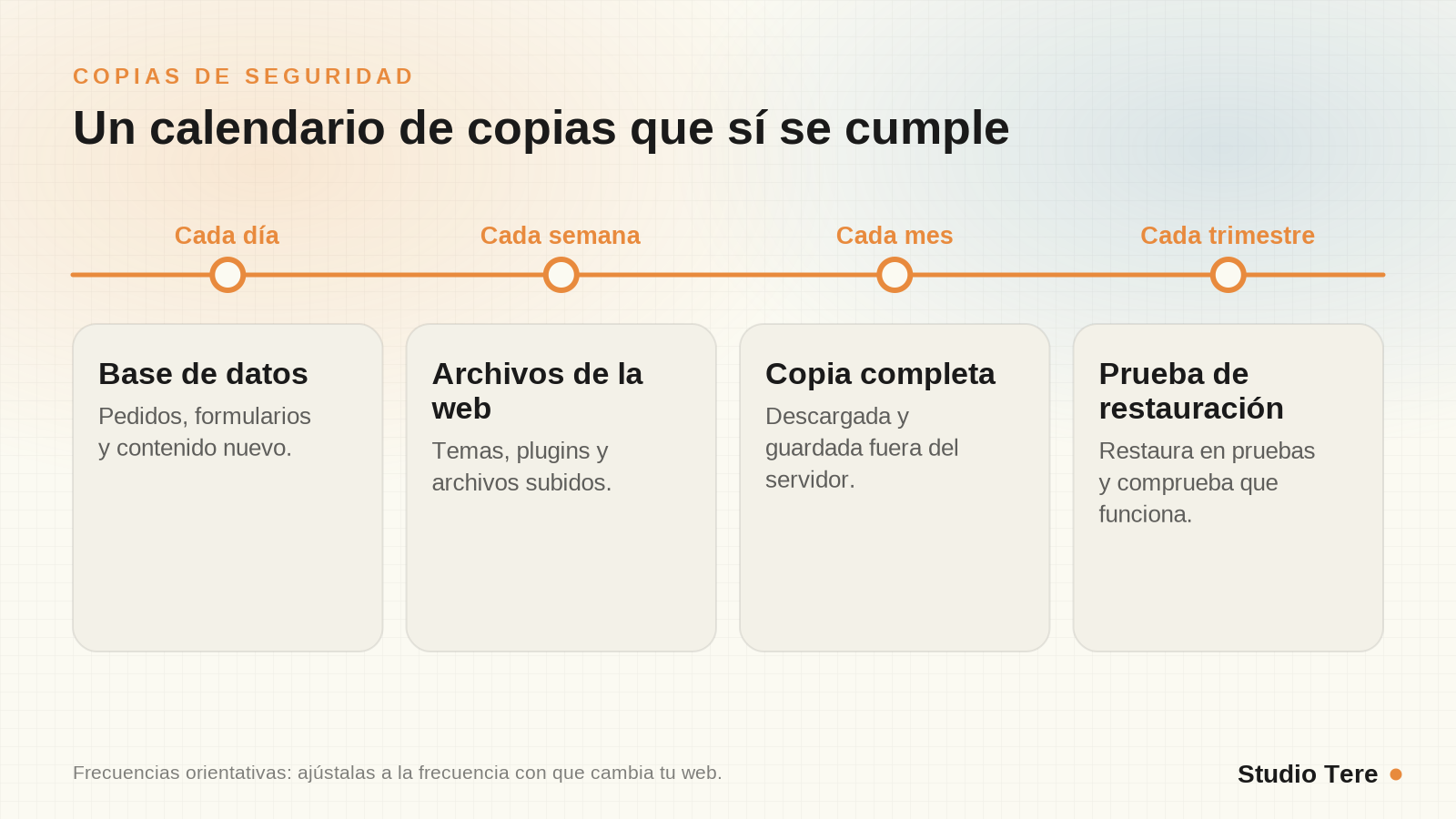
And keep several versions, not just the latest: a problem can go unnoticed for days. A common scheme, as an example, is to keep the last seven daily, the last four weekly and the last three monthly backups.
The restore test: what nobody does and everyone should
Do this check at least once a quarter, and always in a test environment, not on your live site:
- Download the most recent backup from its external location (this confirms that access works).
- Restore it in a test environment or a private subdomain.
- Check that the pages, images and menus display correctly.
- Test dashboard access, the forms and, if you sell, a test order.
- Note how long it took: that’s your real recovery time.
- Document the steps so anyone can repeat them.
Protect your backups too
- Encrypt them if they contain customers’ personal data.
- Use different credentials from your website’s, with two-factor verification.
- Never leave them in public folders on the server: a
.zipfile accessible by URL is a gift to an attacker. - Consider an immutable copy, one that can’t be deleted for a period, to withstand ransomware.
- Control who has access and review permissions regularly.
Backups are one piece of a larger whole. They fit with measures like those we explain in WordPress security: the 10 measures that matter.
Common mistakes
- Relying only on the host’s backup, with no external copy.
- Backing up the database but forgetting the uploaded files (or vice versa).
- Not checking the result of each scheduled backup: sometimes they fail silently.
- Storing backups in the same account and with the same password as the website.
- Not knowing how to restore until there’s an emergency.
A plan to get it sorted in one afternoon
- Make a full backup now and download it to your computer.
- Turn on automatic daily database backups.
- Set up an external destination (cloud) with its own credentials.
- Define retention: how many versions you keep.
- Schedule a quarterly restore test in your calendar.
- Document the procedure in a one-page document.
Frequently asked questions
How often should I back up?
It depends on how much your website changes. For the database, daily is a reasonable guideline; for files, weekly. If you receive orders or forms continuously, consider more frequent backups.
Is my host’s backup enough?
It’s a good foundation, but it rarely meets the “off-site” requirement, because it’s with the same provider. Add an external copy with its own credentials.
Where do I store the backups?
On at least two different media and one external location: for example, the server, a cloud service and a periodic download to a drive of your own.
How many backups do I keep?
Several versions. A common example: seven daily, four weekly and three monthly. Adjust according to risk and space.
How do I know a backup works?
Only by restoring it in a test environment. Do it at least once a quarter and note how long it takes.
Would you rather have someone take care of it and verify it?
Our maintenance includes backups, checks and support with a clear scope from day one.
Sources and recommended reading
- CISA (US-CERT): Data Backup Options. Recommendation of the 3-2-1 rule
- WordPress.org: WordPress backups
- WP-CLI: command reference