
A WordPress site can seem to work perfectly while problems pile up underneath: pending updates, backups that don’t exist, abandoned plugins. Problems don’t warn you until they’re serious. This guide gathers the seven signs your WordPress site needs urgent maintenance, what each one means, what you can do today and when it’s time to ask for help.
Quick summary
- The seven signs: pending updates, slowness, failing forms, security warnings, unused plugins, no backups and broken links.
- With three or more at once, the risk is high: act this week.
- Maintenance doesn’t prevent every problem, but it reduces risk and catches failures in time.
- Always update with a backup first and in the right order.
In this article
The seven signs your website needs maintenance
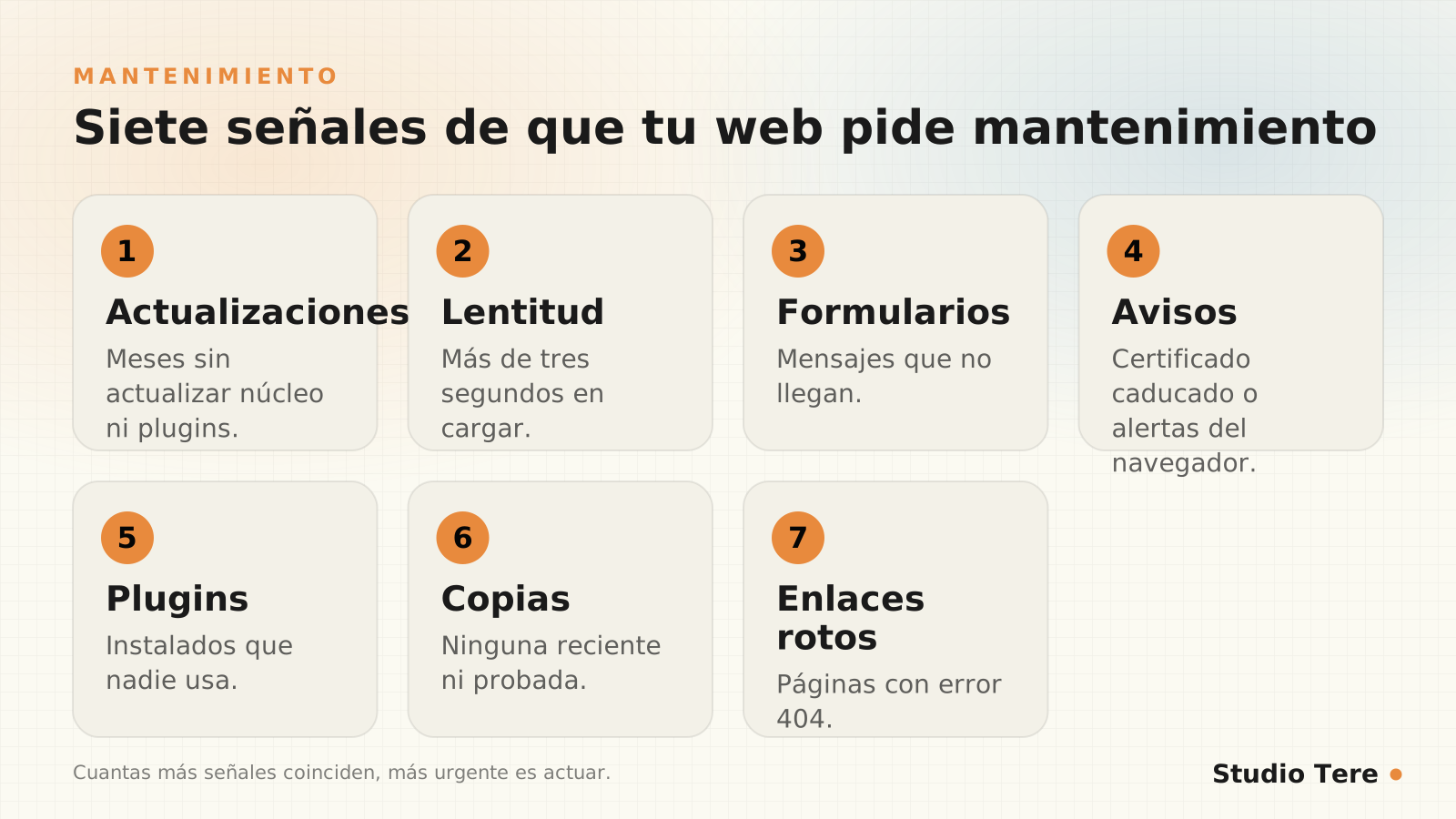
1. You haven’t updated in months
If you see update notices in the dashboard for WordPress, your theme or several plugins that have been waiting for weeks, that’s the most urgent sign. A good share of updates fix security flaws. What to do: make a backup and update one at a time, testing the site between each step.
2. The site takes more than three seconds to load
Slowness is usually the result of accumulation: heavy images, plugins that load everywhere, a bloated database. What to do: measure with PageSpeed Insights, identify the heaviest items and start with images and scripts. You’ll find the full guide in Core Web Vitals: what to measure and how to improve your LCP.
3. Forms stop arriving
It’s the most expensive and quietest sign: you lose requests without knowing it. It’s usually caused by changes to the server’s email, an outdated plugin or a spam filter. What to do: send a test message every week and, if you can, save requests on the site itself as well as by email.
4. Security warnings appear
An expired SSL certificate, a browser warning about an unsafe site, a Google message about suspicious content or a host that warns of unusual activity: all are reasons to act the same day. What to do: review our WordPress security guide and follow the first-hour section for a hack.
5. You have plugins installed that nobody uses
Every plugin is third-party code with access to your site, even if it’s deactivated. According to Patchstack, 91% of the new vulnerabilities in 2025 were in plugins. What to do: list them all, drop the ones you don’t use or that duplicate functions, and delete (not just deactivate) the unnecessary ones.
6. You have no recent backups (or you don’t know if they work)
Without backups, any incident (an update error, an attack, a server failure) can be irreversible. What to do: schedule automatic backups, store them off the server and test them. You’ll find the method in the 3-2-1 rule.
7. There are broken links and pages with 404 errors
Broken links frustrate visitors and waste search engines’ attention. They show up mostly after changing URLs without redirects. What to do: crawl your site, fix internal links and create redirects for the pages that changed (more in this guide).
What website maintenance really includes
As we note in our WordPress website maintenance service, a website doesn’t end when it launches: plugins, themes, PHP, security, forms, backups and performance need periodic reviews. Serious maintenance covers, at a minimum:
- Updates for WordPress, the theme and plugins, with a prior backup and testing.
- Automatic backups, stored off-site and verified.
- Security: user review, firewall and change monitoring.
- Performance: periodic measurement and cleanup of what’s no longer needed.
- Checks of critical functions: forms, payments, emails.
- Support when something fails and a report of what has been done.
And an honest clarification: maintenance doesn’t prevent every problem. It reduces risk, catches failures in time and keeps a more stable technical foundation. Be wary of anyone who promises you a “100% failure-proof” website.
A realistic maintenance routine
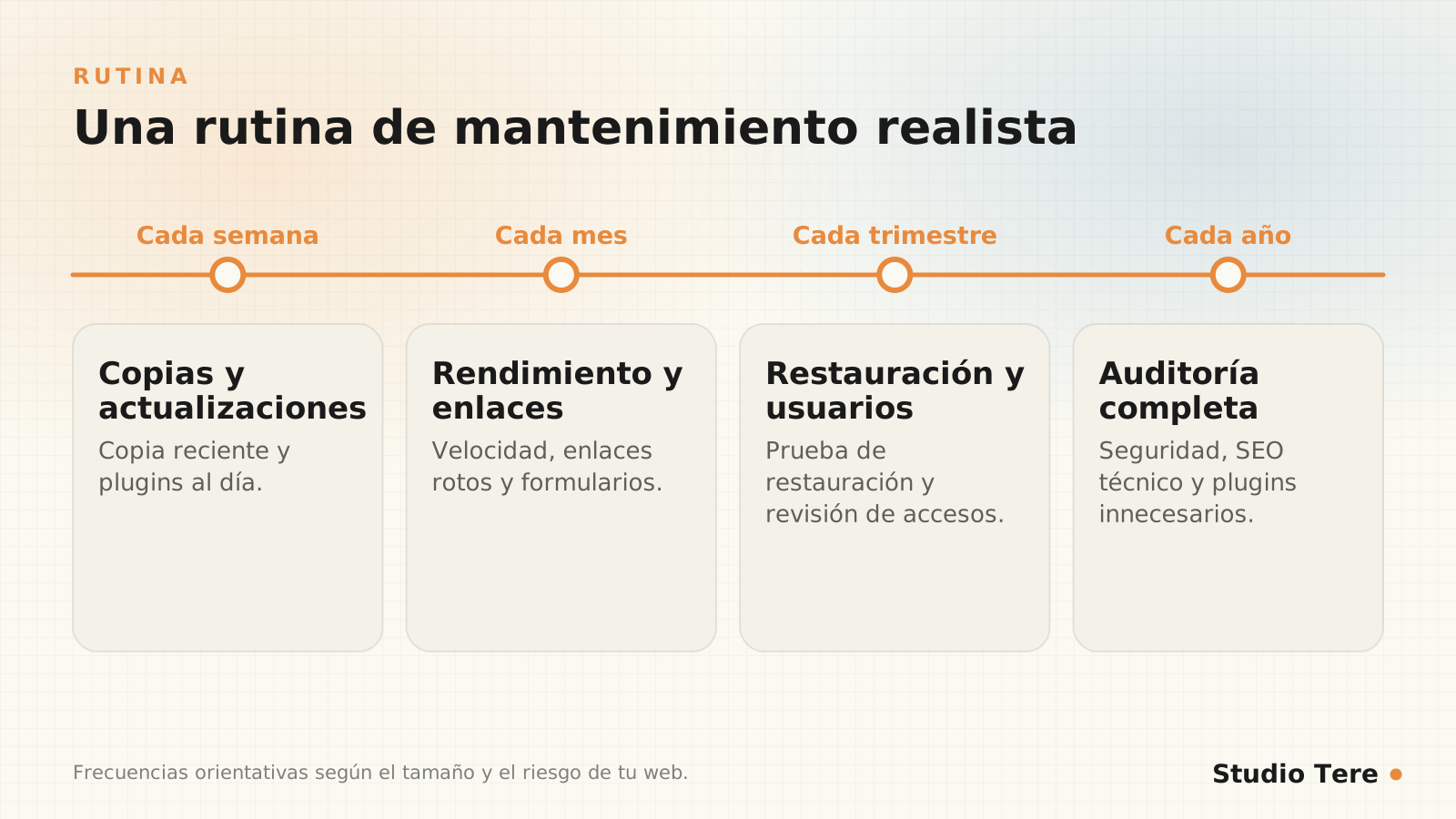
| Frequency | Tasks |
|---|---|
| Every week | Check a recent backup; plugin updates; test a form |
| Every month | Performance (PageSpeed), broken links, review of users and notices |
| Every quarter | Backup restore test; review of unnecessary plugins |
| Every year | Full audit: security, technical SEO, PHP version and licenses |
How to update without breaking anything
- Make a full backup before you start and check that it was created.
- Test first in a staging environment, if your site is important.
- Update in this order: WordPress, the theme and then the plugins, one at a time.
- Check the critical items after each step: the home page, a form, dashboard access and, if you sell, a test order.
- Have a rollback plan: if something fails, restore the backup.
- Note what you’ve done and the date.
What you can do yourself and what’s best to delegate
You can clean up plugins, review users and test forms. It’s best to delegate updates with testing, monitoring, verified backups and incident response if your site is a business tool and you don’t have the time or experience. If you approach it as an economic decision, compare it as we describe in how much a professional website really costs: maintenance is part of the total cost.
The cost of not maintaining your website
- Security: Patchstack counted 11,334 new vulnerabilities in 2025 and estimated the median time to first mass exploitation at about five hours.
- Performance: 53% of mobile visits are abandoned if the page takes longer than three seconds (Google, 2017).
- Business: a broken form or a site that’s down means requests that never arrive.
- Recovery: fixing a hacked or broken site costs more, and is more stressful, than preventing it.
Frequently asked questions
How often should I update my WordPress?
Security updates, as soon as possible and after making a backup. The rest, regularly, at least once a month.
Can I turn on automatic updates?
For low-risk plugins and minor WordPress versions it’s usually reasonable. For critical sites, it’s best to test before updating.
How much does maintenance cost?
It depends on the size, the features and the level of support. The important thing is that it’s defined: what it includes and how you ask for help.
What do I do if I already have several signs?
Start with a backup, then update in order and review the plugins. If there are security warnings or odd changes, treat the case as urgent.
Is switching maintenance providers complicated?
It doesn’t have to be: ask them to document the configuration and make sure the credentials are in your hands.
Do you recognize several signs on your site?
We review your WordPress, tell you what’s at risk and propose maintenance with a clear scope, without impossible promises.
Sources and recommended reading