

A website’s security doesn’t depend on a miracle plugin. It depends on a set of simple habits and a few technical decisions that, together, block the vast majority of attacks. This guide ranks the ten WordPress security measures with the most impact, starting with those that reduce the most risk, and explains the data they rest on.
This isn’t a guide to scare you. WordPress is a mature platform and its core is very solid; problems almost always come from what’s added around it and from what’s left without updates. That, precisely, is the part you can control.
Quick summary
- In 2025, 11,334 new vulnerabilities were recorded in the WordPress ecosystem, 42% more than the previous year (Patchstack).
- 91% were in plugins; in the WordPress core only about half a dozen were reported.
- 46% had no patch when they were made public: updating isn’t enough, a layered defense is needed.
- The ten measures: updating methodically, fewer plugins, unique passwords, two-step verification, protected login, minimum permissions, tested backups, HTTPS and headers, firewall and monitoring.
In this article
What the data says: where the real risk is
Patchstack’s State of WordPress Security in 2026 report, with 2025 data, leaves three clear ideas:
- The volume is growing. 11,334 new vulnerabilities in 2025, versus 7,966 in 2024, 5,948 in 2023 and 4,528 in 2022.
- The problem is third-party components. 91% were in plugins and 9% in themes; in the core there were only six, all low risk.
- Attackers arrive before the patch. 46% of vulnerabilities had no fix when disclosed, and the median time to first mass exploitation was about five hours.
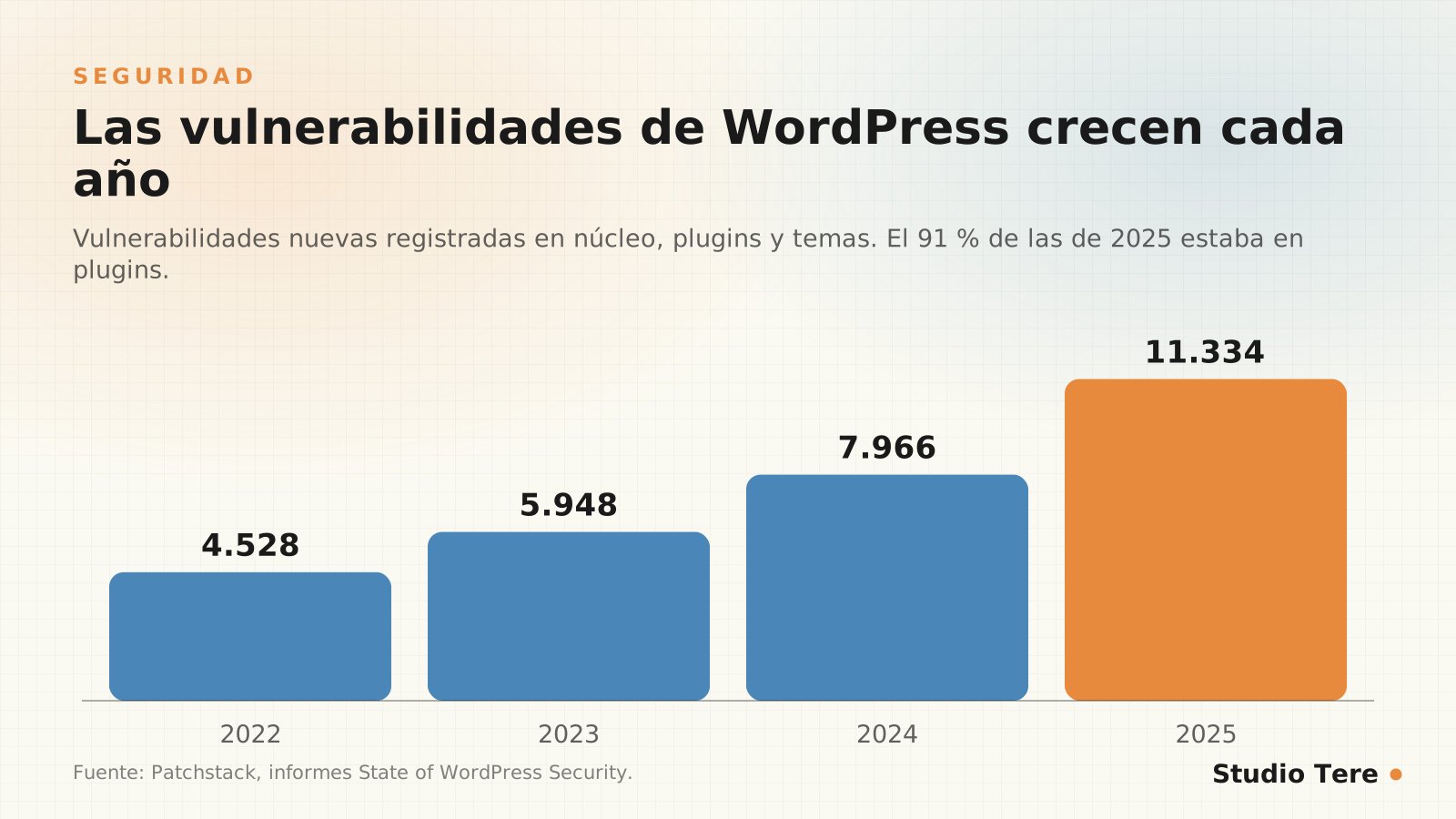
Translated into decisions: an up-to-date WordPress with a few well-chosen plugins is as secure as any other platform; one with twenty outdated plugins is an open door. And since sometimes the patch takes a while, you need more than updating: backups, a firewall and monitoring.
The ten measures, ranked by impact
1. Update methodically, not blindly
Keeping core, theme and plugins up to date is the measure with the best effort-to-result ratio. Do it in order: a recent backup before you start, update one at a time, check that the website and forms work and, if your website is important, test first in a staging environment. Security updates shouldn’t wait weeks.
2. Reduce and choose your plugins well
Each plugin is third-party code with access to your website, which is why they concentrate 91% of vulnerabilities. Remove the ones you don’t use, avoid duplicating functions and, before installing one, check when it was last updated, how many active installations it has and whether the developer responds in support. If a function is critical to your business, consider a custom solution: we analyze it in custom plugins vs. commercial plugins.
3. Long, unique passwords
A password reused on another service is a password that has already leaked. Use a password manager, generate long keys and don’t share accounts: one per person.
4. Two-step verification for administrators
Enable a second factor (authenticator app or security key) for all users with high permissions. It stops most logins using stolen credentials.
5. Protect the login
Limit failed attempts, temporarily block abusive IPs and, if possible, restrict access to the dashboard. Changing the login URL reduces bot noise, but doesn’t replace the measures above.
6. Minimum permissions
Give each person only the role they need. Review administrators every quarter, remove old accounts and be wary of any user you don’t recognize.
7. Tested backups
A backup you’ve never restored is a hope, not a backup. Automatic, off the server and with a periodic restore test. You’ll find the full method in the 3-2-1 rule explained.
8. HTTPS and security headers
The SSL certificate is essential (almost all hosts offer it for free). In addition, a few HTTP headers add protection with very little effort. An example for Apache, which you should adapt to your server:
<IfModule mod_headers.c>
  Header always set X-Content-Type-Options "nosniff"
  Header always set Referrer-Policy "strict-origin-when-cross-origin"
  Header always set X-Frame-Options "SAMEORIGIN"
</IfModule>
9. Web application firewall (WAF)
A WAF filters malicious requests before they reach WordPress. It can be at your host, in a service such as a content delivery network or in a security plugin. It’s especially useful when a vulnerability is already public and there’s no patch yet.
10. Monitoring and alerts
Security that isn’t watched fails silently. Enable alerts for file changes, new administrators and site downtime, and review the server logs when something smells off.
Harden wp-config.php with four lines
The wp-config.php file lets you disable dangerous features. These lines are a reasonable starting point (make a backup before editing):
// Impide editar plugins y temas desde el panel
define("DISALLOW_FILE_EDIT", true);

// Obliga a usar HTTPS en el panel de administración
define("FORCE_SSL_ADMIN", true);

// Oculta errores en producción
define("WP_DEBUG", false);
For a complete reference, see the official WordPress hardening guide and the OWASP Top 10 list of web risks.

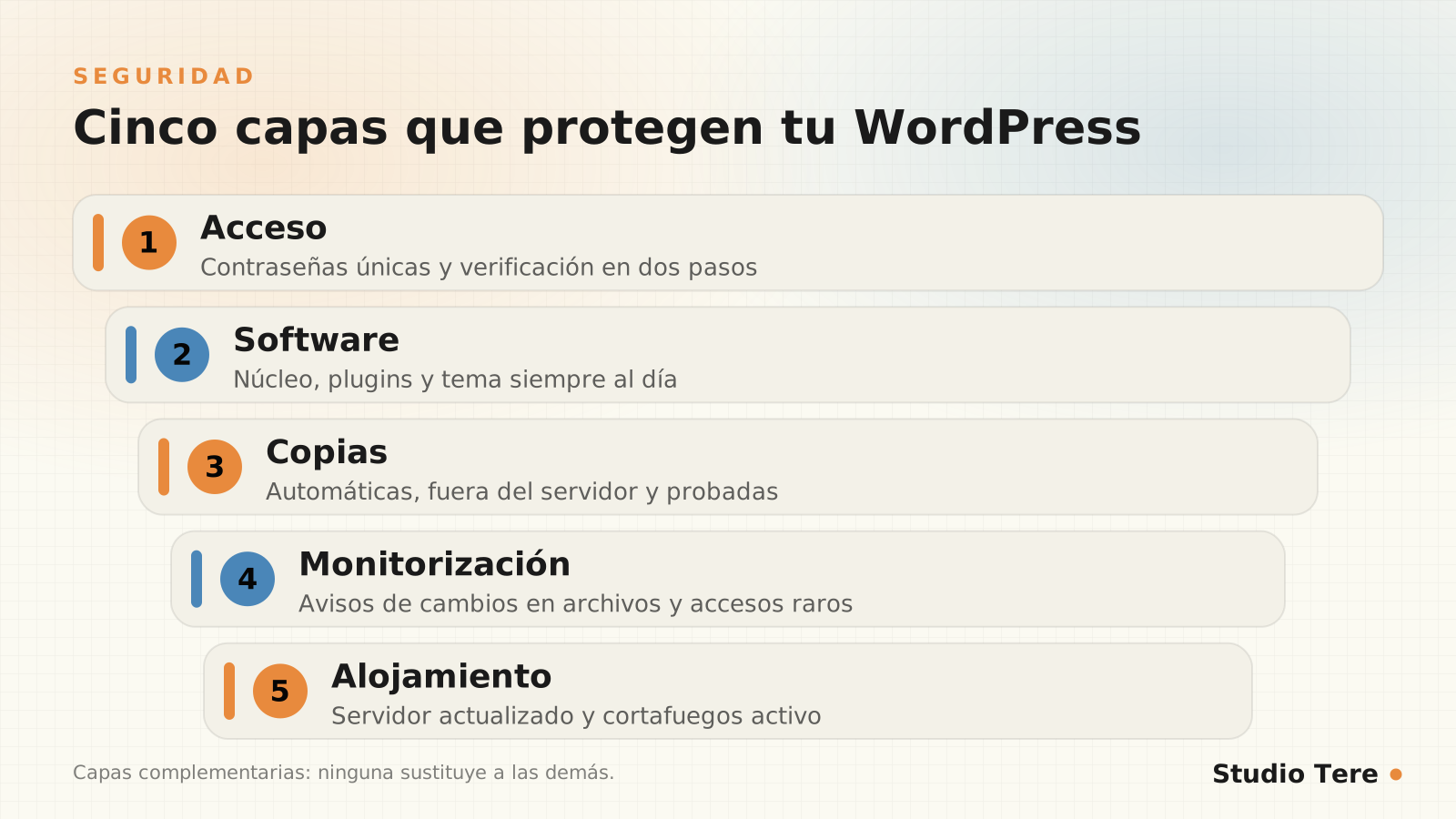
Layered defense
No measure is infallible, which is why they’re combined. If one layer fails, the next one stops the damage or limits it:
If you suspect you’ve been hacked: the first hour
The usual signs are strange redirects, ads you didn’t place, unknown administrator users, Google warnings or a host suspending the account. Act calmly and in order:
- Isolate. Enable maintenance mode or block public access to stop the damage.
- Save a copy of the current state. It will help you analyze what happened.
- Change all credentials: WordPress, hosting, database, FTP/SFTP and API keys. Regenerate the security keys (salts).
- Review users. Remove administrators you don’t recognize.
- Check file integrity with WP-CLI (see below).
- Restore a clean backup from before the incident and update everything immediately.
- Find the cause (vulnerable plugin, leaked password) to close that door.
- Notify if personal data may have been seen and tell your host.
With WP-CLI you can verify whether the core and official-repository plugin files match the originals:
wp core verify-checksums
wp plugin verify-checksums --all
Common myths about WordPress security
- “WordPress is insecure.” The core receives very few reports; the risk is in plugins, themes and careless configurations.
- “If I pay, it’s secure.” Patchstack warns that a high proportion of vulnerabilities in premium components were exploitable in real attacks. Paying doesn’t replace updating and monitoring.
- “My website is small, nobody attacks it.” Attacks are automated: bots look for vulnerable versions, not known brands.
- “A security plugin is enough.” It helps, but it doesn’t fix outdated plugins or weak passwords.
- “I changed the login URL, I’m already protected.” It reduces noise, but doesn’t protect against a targeted attack.
What you can do yourself and what’s best to delegate
You can apply many measures yourself in an afternoon: passwords, two-step verification, cleaning up plugins and reviewing users. Others need technical judgment and consistency: tested updates, WAF, monitoring, verified backups and incident response.
If you don’t want this to depend on your memory, that’s what maintenance is for. In our WordPress website maintenance service we approach it without impossible promises: maintenance doesn’t prevent every problem, but it reduces risks and catches failures in time. And if you’re unsure whether your website already needs it, review the seven signs it needs maintenance.
File permissions and server configuration
Part of security isn’t visible in the WordPress dashboard, but in how the server is configured. The official hardening guide recommends restrictive permissions: the server can read what it needs and write only where necessary.
| Item | Usual permission | Why |
|---|---|---|
| Directories | 755 | Can be traversed, but not modified from outside |
| Files | 644 | General read, write only by the owner |
wp-config.php | 440 or 400 (depending on the server) | It contains credentials: only the owner should read it |
wp-content/uploads | 755 (directories) and 644 (files) | Files are uploaded there: code must never be executable |
- PHP version with active support. An old version stops receiving security patches.
- Directory listing disabled, so nobody can see the contents of folders without an index file.
- Protect sensitive files (such as
wp-config.php) with server rules. - Consider limiting or disabling XML-RPC if you don’t use it, and user enumeration via the REST API.
- Limit attempts and requests at the server or firewall level.
# Apache: bloquear el acceso directo a wp-config.php
<Files wp-config.php>
  Require all denied
</Files>

# Apache: desactivar el listado de directorios
Options -Indexes
Roles and permissions: who should be able to do what
| Role | What it can do | Who should have it |
|---|---|---|
| Administrator | Everything: install plugins, create users, edit settings | Very few people, with two-step verification |
| Editor | Manage and publish all content | Content manager |
| Author | Publish and manage their own posts | Regular writers |
| Contributor | Write posts, without publishing them | External contributors |
| Subscriber / customer | Access their profile or private area | Registered users |
A simple habit: every quarter, list the administrators and ask about each one, “do they still need this access?” Former collaborators’ accounts are a door almost nobody watches.
What to log and when to alert
There’s no point watching everything. These are the events that deserve an immediate alert:
- A new administrator user or a role change to administrator.
- The installation, activation or modification of plugins outside of what’s planned.
- Changes to WordPress core files.
- A spike in failed login attempts from a few addresses.
- A sudden increase in outgoing email (possible spam sending).
- Site downtime and SSL certificate expiration.
A quarterly security plan
| When | Tasks |
|---|---|
| Every week | Updates with a prior backup; review of firewall notices and alerts |
| Every month | Review of plugins and themes; check of the most recent backup; form testing |
| Every quarter | Review of users and permissions; restore test; review of security headers |
| Every year | Full audit: PHP version, server configuration, unnecessary plugins and incident response plan |
Customer data and obligations
If your website collects names, emails, phone numbers or messages, you are responsible for that information. Ask only for the data you need, explain what you use it for, keep the consent and delete what you no longer need. Review the data protection regulations of your country (in Panama, Law 81 of 2019) and, if a breach occurs, act quickly: contain it, assess which data was seen and report it as appropriate.
Frequently asked questions
How often should I update WordPress?
Security updates, as soon as possible, after making a backup. The rest, regularly, at least once a month, testing that everything still works.
How many plugins are too many?
There’s no magic number. What matters is that each plugin has a clear reason, is maintained and doesn’t duplicate functions. Fewer plugins means a smaller attack surface.
Is a security plugin enough?
It’s a useful layer, not the only one. Without updates, strong passwords, two-step verification and backups, a security plugin doesn’t protect you on its own.
What do I do if my website is already hacked?
Follow the first-hour list in this guide: isolate, change credentials, restore a clean backup and find the cause. If you have no backup or you’re unsure, ask for professional help as soon as possible.
Does hosting affect security?
A lot. A server with updated software, isolation between accounts, a firewall and its own backups takes work and risk off your hands.
Would you prefer someone else to watch over your WordPress?
We review updates, backups, security and performance on an ongoing basis, with a clear scope from the start.
Sources and recommended reading